Users
To gain access to the ProviewR development and runtime environment you need to login with
username and password. Users are kept in the user database and are granted privileges which
state the users authority to make changes in the system.
Systems that share the same users are grouped into a system group, and the users for this
group are defined. You can also build a hierarchy of system groups where child groups inherit
the users of their parent, and additional users can be defined for each child.
A system is connected to a system group by the SystemGroup attribute in the $System object.
The notation for a system group in a hierarchy is the names of the group separated by a period,
for example 'Main.West.F1'.
In the example below Eric is responsible for all the systems in the plant, and is defined on
the highest level in the hierarchy. Nils is working with the west side of the plant and is
defined on the 'West' system group. Finally, Carl working with the systems in the F1 part of
the plant. All system groups have the attribute UserInherit, which states that a child group
inherits all the users of the parent.
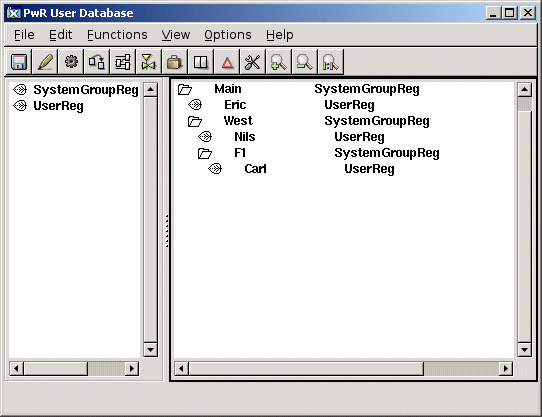
Users and systemgroups are created in the Administrator:
- Start the administrator with the command 'pwra'
- Enter the UserDatabase from the menu 'File/Open/UserDatabase'.
- Login by entering the login command. Open the login prompt from the menu 'Functions/Command'
and enter 'login /adm' on the command line. If the systemgroup 'administrator' is present
you also have to add username and password to a user defined in the administrator systemgroup.
- Enter edit mode from the menu 'Edit/Edit mode'.
Systemgroups and users are represented by object of the classes SystemGroupReg and
UserReg, that are displayed in the palette to the left. An object is created by selecting
a class in the palette. After that, you click with the middle mousebutton on the future
sibling or parent to the new object. If you click on the map/leaf in the destination object,
the new object is placed as the first child, if you click to the right of the map/leaf,
it is placed as a sibling.
- Create a systemgroup by selecting 'SystemGroupReg' in the palette, and click with MB2
(the middle mousebutton) in the right window. Open the SystemGroupReg object and enter
name ant attribute for the system group. Enter the complete hierarchy name, e.g.
'Main.West'.
- Create a user by selecting 'UserReg' in the palette and click with MB2 on the map/leaf
of the SystemGroupReg object that the UserReg should be a child of. Open the object and
enter username, password and privileges for the user.
- Save.
- Logout with the command 'logout'.
The user database resides in the directory $pwra_db.