The Configurator
The configurator is used to navigate in, and configure the Workbench.
The configurator displays the objects in one volume. The objects are usually separated in two
windows, a left and a right, and how the separation is done depends on what type of volumes
are handled.
- For rootvolumes and subvolumes, the plant hierarchy is displayed in the left window, and
the node hierarchy in the right.
- For the directory volume, volumes are displayed in the left window and buses and nodes in
the right.
- For class volumes, classes are displayed in the left window and types in the right.
From 'View/TwoWindow' you can choose whether to display two windows or only one. If only one
window is displayed, every second time you activate 'TwoWindow' the upper window will be
displayed, else it will be the lower window.
From 'Edit/Edit mode' you enter edit mode, and a palette with various classes is displayed to
the left. You can now create new objects, move objects, change values of attributes etc.
Volume representation
Volumes are stored in various formats, in a database, in a loadfile or in a textfile. The
configurator can display a volume in all these formats, and it has four different
representations of volumes:
- db, a database. Rootvolumes and subvolumes are created and edited in a database. Before you
can start the runtime environment, loadfiles are generated from the volumes. The loadfiles
are read at runtime startup. The db representation i editable.
- wbl, a textfile with extension .wb_load. The classvolumes are stored as wbl, and root and
sub volumes can be dumped in a wbl-file, for example when upgrading, and later reloaded. The
wbl representation is not editable. When editing a class volume you import the wbl
representation to a mem-represention, and then save it as wbl again.
- dbs, a loadfile. From rootvolumes, subvolumes and classvolumes, in db and wbl representation,
loadfiles are cerated and used in the runtime environment. The configurator also reads the
dbs-files of the classvolumes to be able to interpret the classes, and the dbs-files of the
root and subvolumes to be able to translate references to external objects. The dbs
representation is not editable.
- mem, a volume the configurator keeps internally in memory. Copy/Paste buffers consist of
mem-volumes. The classeditor imports the classvolume, which originally is a wbl, to a mem
volume, as the mem representation is editable.
As we see above, the same volume can exist both as a database or as a loadfile. When staring
the configurator, you specify a volume as an argument. For this volume, the database is opened,
i.e. it is represented as a db, for the other volumes in the project, the loadfiles are opened,
i.e. they are represented as dbs. This makes it possible to display the other volumes in the
project, and to solve references to them, but they are not editable. If the database of the
volume is locked, because someone else has opened it, an error message is displayed and the
loadfile is opened instead of the database.
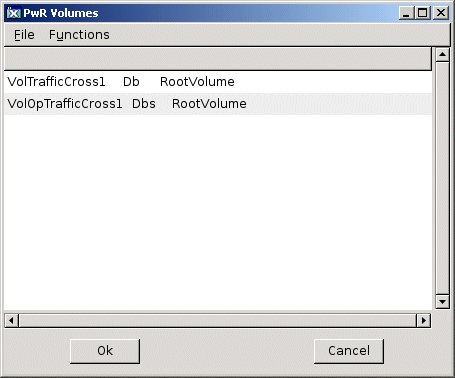
In the figure below the volume list is displayed, which is opened from 'File/Open' in the menu.
It shows all volumes opened by the configurator. We can see that the database for the root
volume VolTrafficCross1 is opened, while the other root volume, VolOpTrafficCross1 is opened
as a loadfile. Also the class volumes are opened as loadfiles.
If no volume is given as argument when starting the configurator, the database of the
directory volume is opened, and the other volumes are opened as dbs-volumes.
Navigate
The objects of the current volume are displayed in the configurator. The objects are ordered
in a tree structure, and objects with children are displayed with a map, and objects without
children with a leaf. For each object the object name, class and possible description is
displayed as default(the description is fetched from the Description attribute in the object).
By clicking with MB1 on a map, the map is opened and the children of the object are displayed.
Is the map already open, it will be closed. You can also open a map with a doubleclick anywhere
in the object row.
If you want to see the content of an object, click with Shift/Click MB1 on the map or leaf,
or Shift/Doubleclick MB1 anywhere in the object row. Now the attributes of the object are
displayed, together with the value of each attribute. The attributes are marked with various
icons dependent of type.
Bitmaps for different types of attributes
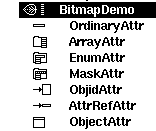
- An ordinary attribut is marked with a long narrow rectangle.
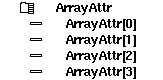
- An array is marked with a map and a pile of attributes. The array is opened with Click MB1
on the map, or Doubleclick anywhere in the attribute row. Now the elements of the array
are displayed.
- An attribute referring another attribute or object, i.e. of type Objid or AttrRef, is marked
with an arrow pointing to a square.
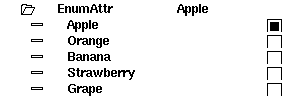
- Enumeration types, Enum, is marked with am map and some long narrow rectangles. By clicking
MB1 on the map the different alternatives of the enumeration are displayed. The alternatives
are displayed with check boxes, and the chosen alternative is marked. You can also
Doubleclick MB1 in the attribute row to display the alternatives.
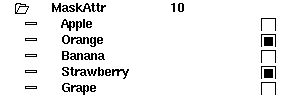
- Mask types, Mask, is marked similar to Enum, an the different bits are displayed with Click
MB1 on the map, or Doubleclick MB1 in the attribute row.
- Attribute objects, i.e. attributes that contain the datastructure of an object, are marked
with a square with a double line on the upper side. The attribute object is opened with
Click MB1 on the square, or Doubleclick MB1 in the attribute row.
An object or attribute is selected with Click MB1 in the object/attribute row (not in the map
or leaf). With Shift/MB1 you can select several objects. With Drag MB1 you can also select
several objects.
From an ergonomic point of view, it is often better to navigate from the keyboard. You mainly
use the arrow keys. First you have to set input focus to the window, by clicking on it. Input
focus between the left and right window is shifted with TAB.
With ArrowUp/ArrowDown you select an object. If the object has children, you open the children
with ArrowRight, and close with ArrowLeft. The content of the object, i.e the attributes, are
displayed with Shift/ArrowRight and closed with ArrowLeft.
An attribute that is an array, enum, mask or attribute object, is opened by ArrowRight and
closed by ArrowLeft.
When you feel at home in the object tree, you can set yourself as 'advanced user'. Additional
function is the placed in the arrow keys. ArrowRight on an object, displayes for example the
attributes of the object, if it has no children. If it has children, you have to use
Shift/ArrowRight as before.
Editing
When editing a volume, you create new objects, copy objects, remove objects and change values
of attributes.
Create an object
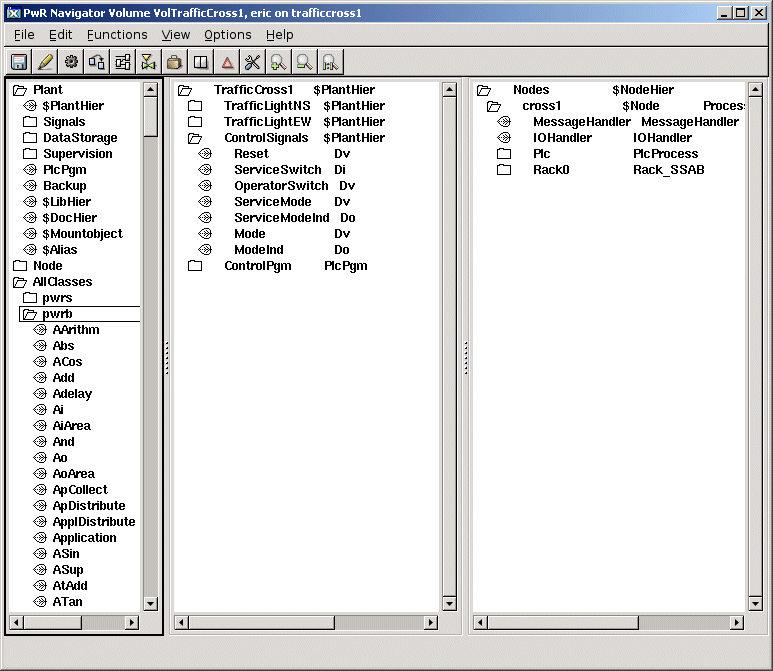
You create an object by selecting the class of the object in the palette. The palette is
divided in the folders Plant, Node and AllClasses. Under Plant you find the most common classes
in the plant hierarchy, under node the most common in the node hierarchy. If the class is not
found here, all the classes are available under AllClasses. Here, all the class volumes are
listed, and under each volume, the classes of the volume. After that, you click with the
middle mousebutton on the future sibling or parent to the new object. If you click on the
map/leaf in the destination object, the new object is placed as the first child, if you click
to the right of the map/leaf, it is placed as a sibling.
You can also create an object from the popup menu. Select a class in the palette and open the
popup menu by Click MB3 on the destination object. Activate 'Create Object' and choose where
to put the new object, relatively the destination, before, after or as first or last child.
The Configurator in edit mode
Delete an object
An object is deleted from the popup menu. Click MB3 on the object and activate 'Delete Object'.
Move an object
You can also move an object from the popup menu, but it is often easier to use the middle
mouse button: select the object that is to be moved and click with the middle button on the
destination object. If you click on the map/leaf on the destination object, the object is
placed as first child, else as a sibling.
Note! Avoid using Cut/Paste to move an object. This will create a copy of the object with
a new object identity, and references to the object might be lost. You can use the command
paste/keepoid to keep the identity.
Copy an object
You can copy an object with copy/paste or from the popup menu.
- copy/paste. Select the object or objects that are to be copied and activate 'Edit/Copy'
(Ctrl/C) in the menu. The selected objects are now copied to a paste buffer. Select a
destination object, and activate 'Edit/Paste' (Ctrl/V). The objects in the paste buffer are
now placed as siblings to the destination objects. If you instead activate 'Edit/Paste Into'
(Shift+Ctrl/V) the new objects are placed as children to the destination object. If the
copied objects have children, the children are also copied by copy/paste.
- from the popup menu. Select the object or objects that are to be copied, open the popup
menu from the destination object, and activate 'Copy selected object(s)'. You now have to
choose where the new objects are to be placed, relative to the destination object, as first
or last child, or as next or previous sibling. If the copied objects have ascendants, and
they also are to be copied, you activate 'Copy selected Tree(s)' instead.
Change object name
The name of an object is changed by selecting the object, and activating 'Edit/Rename'
(Ctrl/N) in the menu. An input field is opened in the lower region of the configurator, where
the new name is entered. An object name can have max 31 characters.
You can also change the name by displaying the object attributes. In edit mode, the object
name is displayed above the attributes, and is changed in the same way as an attribute.
Change an attribute value
Select the attribute to be changed, and activate 'Functions/Change value' (Ctrl/Q) in the menu.
Enter the new value in the input field. If you want to terminate the input, you activate
'Change value' again.
Not all attributes are editable. It depends on the function of the attribute, if it is to be
assigned a value in the development environment or not. Editable attributes are marked with
an arrow.
You can also change the value of an attribute from the object editor, opened from the popup
menu (Open Object). An attribute of type multiline text, can only be edited from the object
editor.
As 'advanced user' you can open the input field with 'ArrowRight', as a faster alternative to
'Change value'.
Symbol file
The symbolfile is a command-file that is executed at configurator startup.
It can contain definitions of symbols and other configurator commands.
The default filename of the symbolfile is $pwrp_login/wtt_symbols.pwr_com.
Here are some examples of useful commands.
Shortcut to somewhere in the database hierarchy:
define rb9 "show children /name=hql-rb9"