Simulate
Simulate means starting the system for a process or operator station on the development
station. This is a fast way to test programs and process graphics during the development
phase. Also when a system is in production, you can test modifications of the system before
downloading them to the production system.
When simulating, the input data from the process has to be simulated. This is done by creating
a PlcPgm that reads output data to the process, i.e. Do an Ao values, and from these set
values to Ai and Di objects. There are special StoDi and StoAi objects for this purpose, only
used at simulation. You have to assure that simulate program only executes at simulation, e.g.
by setting the ScanOff attribute of the PlcWindow object if IOSimulflag in the IOHandler
object is 1.
To be able to simulate on the development station, it has to be configured in the directory
volume. The simulation is performed on a separate QCom bus, which is configured by a
BusConfig object on the top level in the right window of the directory volume. In this you
state the bus identity, e.g. 999. Below the BusConfig object you place a NodeConfig object
for the development station, and fill in the node name and IP address. You can use the
loopback address 127.0.0.1 as long as you don't plan to communicate to other nodes. You also
have to specify which volume you want to simulate by setting the name of the RootVolumeLoad
object below the NodeConfig object, to the name of the volume.
Note that the configuration guide for the directory volume normally creates a simulate bus
and a simulate node.
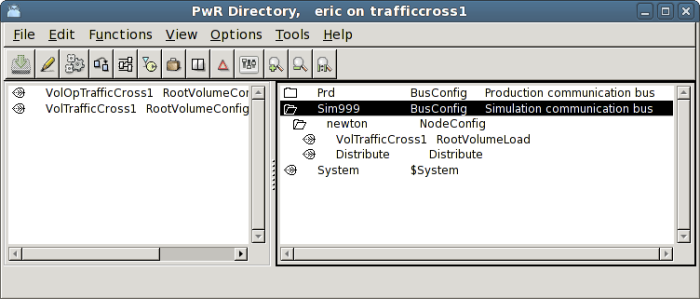
Fig Directory volume with configuration of the development station newton
When the development station is configured, you build by opening the configurator for the
volume that is to be simulated, and activate 'Build Node' and select the development station
in the viewed list of nodes.
Before starting the runtime you have to define the environment variable PWR_BUS_ID to the
identity fo the simulation bus. A default value for PWR_BUS_ID is set in the file
/etc/proview.cnf, parameter QcomBusId. With the command
> echo $PWR_BUS_ID
you check the bus identity, and with the command
> export PWR_BUS_ID=999
you assign another value. This command you can for example insert in $pwrp_login/login.sh.
Now you can start the ProviewR runtime with
> rt_ini &
and stop with
> . pwr_stop.sh
If ProviewR doesn't start you can add -i to the start command to see error messages.
> rt_ini -i
Note that you always have to reset by executing '. pwr_stop.sh' before a new start attempt.
When the runtime environment is running you can explore the system by starting the runtime
navigator
> rt_xtt
You can also use the runtime monitor to start the runtime environment. See below.