Creating Process Graphics
This chapter describes how you create process graphics.
Process graphics are drawn and configured in the Ge editor.
The Ge editor
Ge is opened from the menu in the navigator: 'Functions/Open Ge'. It consist of
- a tool panel
- a work area
- a subgraph palette
- a color palette
- a window displaying the plant hierarchy
- a navigation window
Background picture
A background image is drawn with base objects such as rectangles, circles, lines, polylines
and text. These are found in the tool panel. Create a base object by activating the pushbutton
in the tool panel and dragging or clicking MB1 in the work area. If the base object should be
filled, select the object and activate fill in the tool panel. Change the fillcolor by
selecting the object and click on the desired color in the color palette. Change the border
color by clicking with MB2 in the color palette, and the text color by clicking Shift/Click MB1.
Subgraphs
A subgraph is a graphic component, e.g. a valve, a motor, a pushbutton. To create a subgraph,
select a subgraph in the subgraph palette and click MB2 in the work area.
Groups
Base objects and subgraphs can be grouped together by selecting them and activating
'Functions/Group' in the menu.
Dynamics
Subgraphs and groups have dynamic properties, i.e. they can be connected to signals in the
runtime database, and change color, position or shape depending on the values of the signals.
A subgraph often has default dynamic behavior, for example an indicator shifts between two
colors. You only have to connect the indicator to a digital signal to make it work. This is
done by selecting a signal in the plant hierarchy window, and click on the valve with
Ctrl/DoubleClick MB1.
A pushbutton has an action property; it sets, resets or toggles a signal in the database.
A button with a set action is created by selecting a ButtonSet in the subgraph palette and
clicking MB2 in the work area. The signal that should be set is connected as above, by selecting
the signal and clicking with Ctrl/DoubleClick MB1 on the button. In the object editor, a button
text can be assigned.
Connect a subgraph to a signal
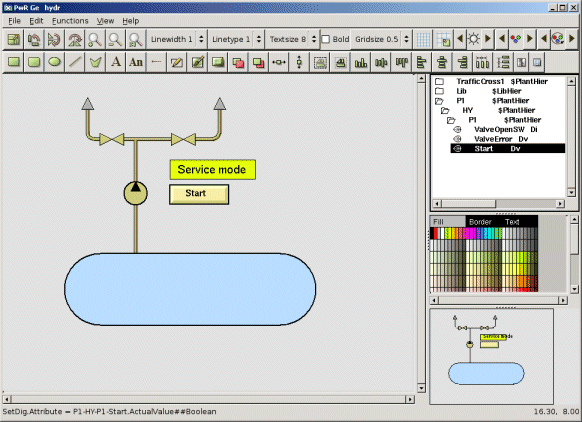
Groups also have a dynamic property, i.e. they can shift color, move, or perform some action.
They don't have any default action or default color, as the subgraphs. You have to assign this
for each group.
The Object editor
Base objects, subgraph objects and groups have properties, that are changed from the object
editor. The object editor is opened by selecting the object, and activating
'Function/Object attributes' in the menu. By opening the object editor for the pushbutton
mentioned above, you can for example enter the text that is displayed in the button in the
attribute 'Text'.
If a subgraph has more advanced dynamics, for example shift between several colors, you often
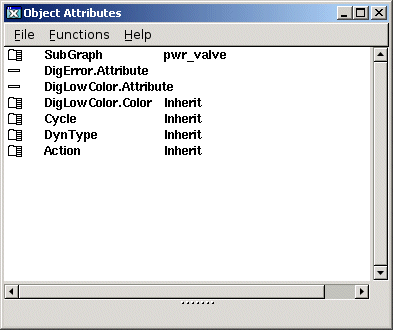
have to connect it to several signals. If you open the object editor for a valve, you see that
it can be connected to two attributes, 'DigError.Attribute' and 'DigLowColor.Attribute'.
The DigError attribute indicates that something is wrong, and if this signal is true, the
valve is colored red. The DigLowColor attribute is connected to the open switch of the valve.
If this signal is false, the valve is colored in the color stated in 'DigLowColor.Color'. If
the signal is true, it keeps the color given in the editor. The signals of the two attributes are
inserted by selecting each signal in the plant hierarchy respectively, and clicking with
Ctrl/Doubleclick MB1 on the attribute row of the attribute. The color 'DigLowColor' is stated
by opening the attribute and selecting one of the 300 colors. The colors have the same order
as in the color palette, and with a little practice they can be identified by the name.
The Object Editor for a valve
Graph borders
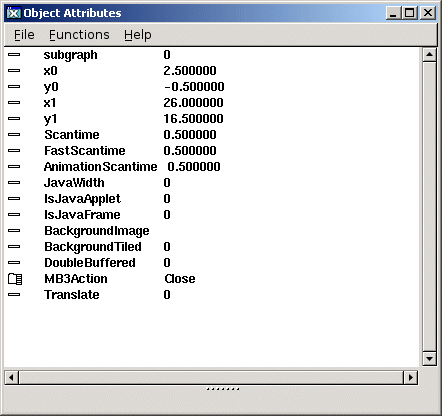
The drawing area in Ge is unlimited in every direction, so before saving the graph, you have
to state the borders of the graph. Open the graph attributes with 'File/Graph' attributes in
the menu. Measure the coordinates of the upper right corner, and insert as x0 and y0, then
measure the coordinates of the lower left corner and insert as x1 and y1. The measurement is
done by placing the cursor in position and reading the coordinates in the the message row.
Graph Attributes
Configuration in the workbench
The XttGraph object
To each plant graphics an XttGraph object is belonging. This object is usually a child of the
operator place object (OpPlace) for the node, on which the graphics will be displayed. It is
necessary to create an XttGraph object for each node, on which the graphics will be displayed.
However, you only need to have one graph file. The following attributes in the graph object
must be set to appropriate values:
- Action, the name of the pwg file with file type, e.g 'hydr.pwg'
- Title, the title of the graph window
- ButtonText, text of the button in the operator window
The XttGraph object contains other attributes which e.g. helps you to customize the position
and size of plant graphics. These attributes are described in detail in ProviewR Objects
Reference Manual.
See XttGraph in Object Reference Manual