Graphical PLC Programming
This chapter describes how you create PLC programs.
The Editor
You enter the plc editor from a PlcPgm object in the plant configuration. Select the object
and activate 'Functions/Open Program' in the menu. The first time the program is opened, you
will find an empty document object. The program consists of functions blocks and Grafcet sequences.
Programming with function block is made in a horizontal net of nodes and connections from left
to right in the document. Signals or attributes are fetched on the left side of the net, and
the values are transferred via connections from output pins to input pins of functions blocks.
The function blocks operate on the values, and on the left side of the net, the values are
stored in signals or attributes.
Grafcet sequences consist of a vertical net of nodes and connections. A state is transferred
between the steps in the sequence via the connections. Grafcet and function block nets can
interact with each other and be combined to one net.
Edit function objects
The plc editor consists of
- a working area
- a palette with grafcet objects and function blocks, and a palette with connections
- a navigation window, from which the work area can be scrolled and zoomed
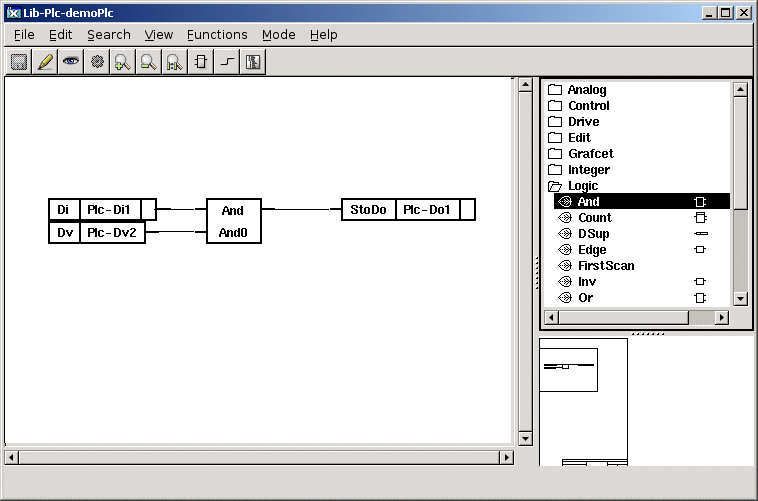
Fig The Plc editor
A function object is created by selecting a class in the palette, and pressing MB2 in the
working area.
Modify the object
The object is modified from the object editor. This is opened by selecting the object and
activating 'Functions/Open Objects' in the menu. Values of the object attributes are modified
with 'Functions/Change value' in the object editor menu, or by pressing the Arrow Right key.
If an input or output is not used, it can be removed with a check box. There is also a
check box which states that the value of a digital input should be inverted.
Connect function objects
A output pin and a input pin is connected by
- Place the cursor on the pin, or in an area in the function object close to the pin, and
press MB2.
- Drag the cursor to the other pin, or to an area in the function object close to the pin, and
release MB2.
A connection is now created between the function objects.
Fetch a signal value
The value of a Di signal is fetched with a GetDi object. The GetDi object has to point at a
Di signal and this is done by selecting the signal in the plant configuration, and then press
Ctrl and double click on the GetDi object. The name of the signal is now displayed in the
drawing. Dv signals, Do signals and attributes are fetched in the same way, with GetDv, GetDo
and GetDp objects.
The easiest way to create a Get object is to draw a connection from input point where the Get
object should be connected, and release it in an empty space in the work area. A generic Get
object is now created that will be transformed to a Get object of the correct type when the signal
is specified. The signal is specified as before by selecting the signal in the plant hierarchy
and Ctrl/double click on the Get object.
Store a value to a signal
The value of an output from a function object is stored in Do signal with a StoDo objects.
The StoDo object is connected to a Do signal in the same way as the Get objects. Dv signals
and attributes are stored with StoDv and StoDp objects.
Grafcet Basics
This section gives a brief introduction to Grafcet. For a more detailed description, please
read a reference manual on Grafcet. Grafcet is an international norm or method to use at
sequential control.
Grafcet consists of a number of steps, and to each step one or more orders are connected, which
will be executed when the step is active. In order to move from one step to another, a
transition is used. For each transition you have transition conditions, and the move can only
take place when the transition conditions have been fulfilled.
Single Straight Sequence
We look at the single sequence below and assume that the step is active, which means that the
order connected with the initial step will be carried out. This order will be carried out
until the initial step becomes inactive. Step 1 becomes active when the transition condition
for transition 1 has been fulfilled. Then the initial step becomes inactive.
A Grafcet program is always a closed sequence.
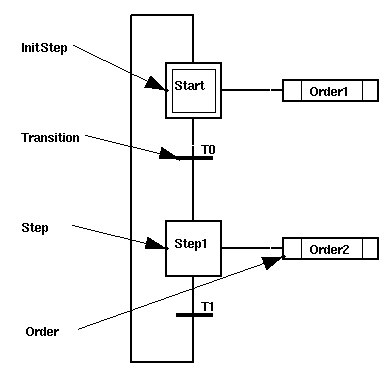
Fig A Simple Straight Grafcet Sequence
Diverged sequence
A straight sequence is the most simple variant of sequences. Sometimes you may require
alternative branches in your program, for instance when you have a machine which can
manufacture three different products. At the points where the production differs, you introduce
alternative branches.
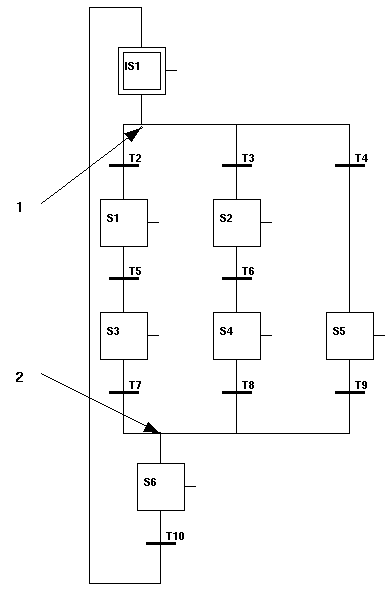
Fig Sequence Selection
The example in the figure above shows the sequence for a machine which can manufacture the
three products, Red, Green, and Blue. At the point of divergence, point 1 in the figure, you
choose the desired branch depending on the product to produce. The alternative branches diverge
from a step, that is followed by one transition condition in each branch. It is the
constructors task to see that only one of the transition conditions is fulfilled. If several
are fulfilled, it is undefined which one that is selected. At point 2 in the figure, the branches
are converging to a common step.
Parallel Sequences
Sometimes it may be necessary to start several parallel working procedures at the same time.
It must be possible for these working procedures to operate independent of each other. In
order to do this, parallel sequences are used.
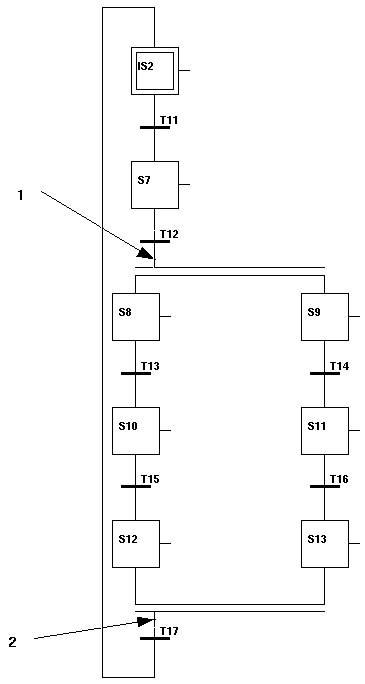
Fig Parallel Sequences
The example in the figure above illustrates the sequence for two machines that are drilling
two holes at the same time and independent of each other. When the transition condition before
the parallel divergence (point 1 in the figure) is fulfilled, the activity is moved to
both branches, and the machines start drilling. The drilling is performed independent of each
other.
The branches are converging to a transition condition (point 2 in the figure), and when the
drilling is completed in both machines, i.e. both S12 and S13 are active, and the transition
condition T17 is fulfilled, the activity is moved to the init step IS2.
Step
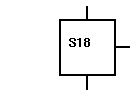
A Step is used to describe a state in the process. The following applies to a step:
- A step can be active or inactive.
- An attribute, Order, indicates whether the step is active or not.
- You can connect one or more orders to a step.
- The step can be allocated a name at your own discretion.
InitStep
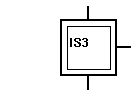
In each sequence you must have an initial step (InitStep) which differs from a usual step
in the following way:
- You should only have one initial step in a sequence.
- When the program starts its execution, the initial step is active.
- You can always make the initial step active by setting the reset signal.
Transition - Trans
As mentioned above, the transition (Trans) is used to start a transition between an active
and an inactive step. A logical condition, for instance a digital signal, is connected to a
transition, and determines when the transition is taken place.
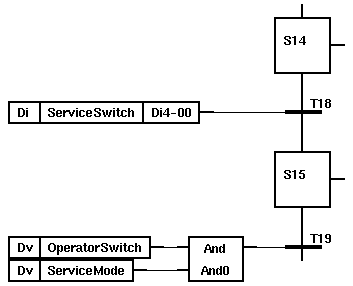
Fig A Transition Example
Order
It is possible to connect one or more orders to each step.

Fig An Order Example
Normally the output is active when the input is active, but for each order you have a number
of attributes, with which you can influence the function of the output:
- D Delay
- L Time limit
- P Pulse
- C Conditional
- S Stored
These functions are described in detail in ProviewR Objects Reference Manual. The principles are
that you indicate the name of the attribute (capital letters) and possible time by means of the
Object Editor. The figure below illustrates how to delay an order from being active for 10
seconds.
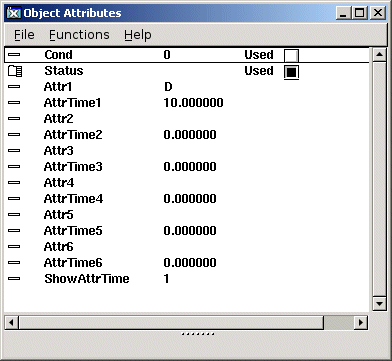
Fig DOrder Attributes
The selected order attributes are written in the order symbol.
The figure below illustrates how you can use an order object with delay to make a step active
for a certain time.
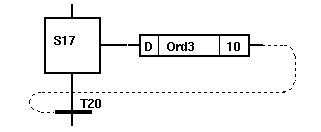
Fig A Delayed Transition
Note! You must use a ConFeedbackDigital connection to connect the delayed order object with
the transition object, otherwise the order of execution will be ambigous.
See Feedback Connection
Subsequence - SubStep
When you are creating complex Grafcet programs, it is often suitable to use subwindows,
and to place subsequences in these to get a better layout of the program.
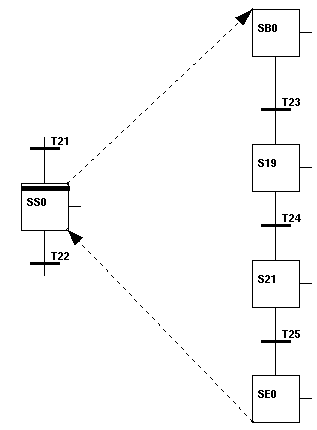
Fig Subsequence
The above figure shows the sub sequence of a SubStep. A sub sequence always starts with an
SsBegin object, and ends with an SsEnd object. In its turn a subsequence can contain
subsequences.
Building Grafcet sequences
Grafcet sequences are easily built in the plc editor by starting with a Step or InitStep
object. By drawing a connection from the lower connection point of the step, and releasing
the connection in an empty space in the work area, a connected Trans object will be created.
In the same way Order objects are created from the right connection point, and from the Trans
object, new Step objects will be created from the upper and lower connections points.
An Introduction to Function Block Programming
Blocks to fetch and store values
Blocks to fetch and store are used to read and write values. There are fetch and store blocks
for each type of signal. In the figure below a number of these blocks are displayed. They
are found in the 'Signal' folder in the palette.
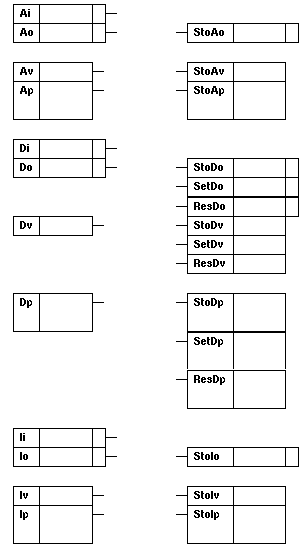
Fig Blocks to fetch and store values
To read signals you use blocks like GetAi, GetIi, GetDv or GetAo. When you want to give a value
to a signal, you use for instance StoAv, StoDo, SetDv or ResDo.
Digital values can be written in two ways:
- 'Sto' stores the input value, i.e. if the input is 1 the signal becomes 1, and if the input is
zero the signal becomes zero.
- 'Set' sets the signal to one if the input is true, Res sets the signal to zero if the input
is true. For instance, if you set a digital output signal with a SetDo object, this will
remain set until you reset it with a ResDo object.
To read, respectively assign attribute values other than the ActualValue attribute, you use the
following:
- analog attributes, GetAp and StoAp
- integer attributes, GetIp and StoIp
- digital attributes, GetDp and StoDp, SetDp or ResDp
- string attributes, GetSp and StoSp
- time attributes, GetAtp, GetDtp, StoAtp and StoDtp
Logic Blocks
A number of objects are available for logical programming, for instance And-gate (And),
Or-gate (Or), inverter or timer. For the logical programming digital signals are used. The
objects are placed in the folder Logic.
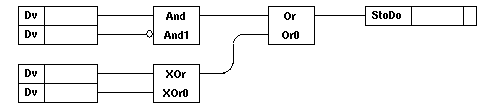
Fig Logic Blocks
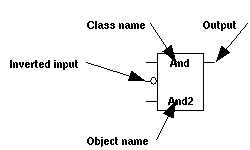
The figure below shows an And-gate. For this object the following applies:
- Inputs to the left
- Output to the right
- Class name is written at the top
- The object name is written at the very bottom (can be changed by the user)
- You can use a variable number of inputs, default is 2
- The inputs can be inverted, indicated by a ring on the symbol's input
And-gate
The attributes of the And-gate are changed with the Object Editor.
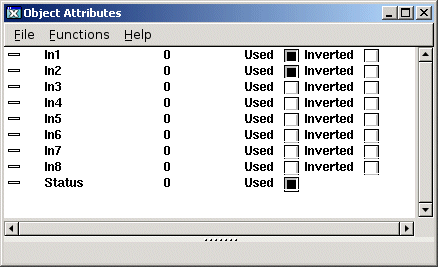
Fig Attributes of the And-Gate
The other objects in the 'Logic' folder have similar parameters, see ProviewR Objects Reference
Manual .
Calculation Blocks
The folder 'Analog' contains a number of objects for handling analog signals, for instance
filters, summation blocks, and integrators.
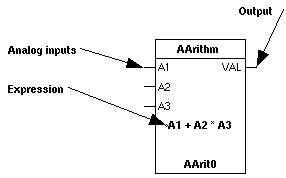
Fig Arithmetical Calculation Block
In this guide we do not describe the function of the objects, but it may be expedient to
comment on the use of arithmetic blocks. The blocks are used for calculation of user defined
expressions. These are written in the C language.
In the figure below the block will calculate the expression (A1 + A2 * A3) and give the output
this value. A1, A2 and A3 are representing analog values, for instance signals supposed to be
connected to the inputs of the object.
When writing these expressions it is important to use space before and after the operators,
otherwise the expression may be misinterpreted at the execution.
The expression can contain advanced C code with arrays and pointers. When you write these, you
should be aware that indexing outside arrays, or erroneous pointers might cause the
execution of the plc-program to terminate.
Alarm Supervision
In ProviewR it is possible to supervise analog and digital signals. Supervision of analog
signals is made against a limit value. If the supervised limit is exceeded, an alarm is sent
to the Message Handler, which in turn sends the alarm to the out unit, e.g. an operator
dialog.
See ProviewR Objects Reference Manual regarding the attributes of the objects.
Supervision of Digital Signals
For supervision of a digital signal or attribute, you use the DSup object (Digital
supervisory), which is in the folder Logic.
The desired signal or attribute, is fetched with a Get-object that is connected to the DSup
object. Outputs of logical blocks can be directly connected to the DSup object.

Fig Digital Supervisory Objects
Figure above illustrates supervision of a Dv signal and a digital attribute.
You also have an attribute in the DSup object, 'CtrlPosition', that indicates whether the
alarm will be activated when the supervised signal/attribute becomes true or false.
Supervision of Analog Signals
For supervision of an analog signal or attribute, you use the ASup object (Analog supervisory),
which is in the folder 'Analog' in the palette.
Supervision takes place in the same way as for DSup objects with the exception that you can
choose whether the alarm will be released when the value is above or below the supervision
limit.
Execute order
The execute order is determined by the how the function objects are coupled together. An object
which output is connected to the input of another object, is executed before the object it
is connected to. You can see the execute order by activating 'View/Show Execute Order' in the
plc editor menu. For objects and nets that are not coupled together, the execute order is
determined by the position. Object higher up is execute first.
If you want to influence the execute order between two objects, you can draw a special execute
order connection beween the objects. This is choosen in the connection palette and has an
arrow in one end. The object that the connection is pointing at will be executed after the
object that the connection emanates from.
If a net contains a feedback connection, the execute order can't be determined and the error
'Amigous execute order' is messaged. You then have to exchange one connection to a feedback
connection, ie a connection that doesn't determine the execute order. The feedback connection is
dashed and is selected in the tool panel or in the connection palette.
I/O copying
If a signal is used in several places in a net of function objects, there is a chance that
the signal value will be changed during the execution which can result in lockings and other
fenomena that is hard to predict. Therefor a mechanism called I/O copying is used. The
signal values for signals of type Ai, Ao, Av, Di, Do, Dv, Ii, Io, Iv, Co, Bo and Bi are
gathered in special area objects. Before a plc thread starts to execute, a copy of the area
objects are made, and during the execution all the readings are made from the copy, while
writings are made into the original area objects. This ensures that this kind of fenomena is
avoided, but also that you can get delays. If a signal value is set, and then read in the same
plc thread, the modification will not be registred until the next scan.
Compile the plcpgm
Before starting to compile, you have to state on which platform (or platforms) the volume of
the plc should run. Open the volume attributes editor from the navigator menu:
'File/Volume Attributes', and enter the OperatingSystem. Note, that more than one operating
system can be chosen. The volume can at the same time be run in the production system, in a
simulation system and in a educational system, and the systems can have different platforms.
The plcgpm is compiled by activating 'File/Build' in the plc editor menu. Any warning or error
messages will be displayed in the message window. When building the node, any new or modified
plcpgm will also be compiled.