The Spreadsheet Editor


The Spreadsheet editor is used to view or configure several objects of the same class
simultaneously. Objects for a certain class, below a specified object in the object tree, are
displayed in a table in the editor. In the table also the values of an attribute in the
objects are displayed, and you can easily shift between different attributes.

The Spreadsheet Editor is opened from the configurator: 'Functions/Spreadsheet' in the menu.
If the configurator is in edit mode, the Spreadsheet Editor is also opened in edit mode.

When the spreadsheet editor is started, you first have to state which objects are to be
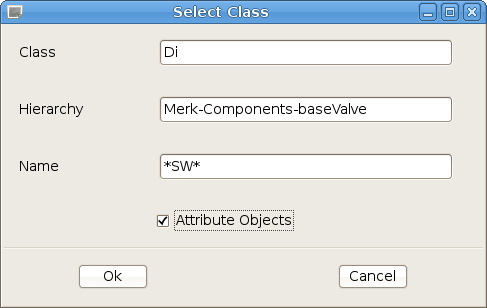
displayed, i.e. which class they belong to and under which hierarchy the are placed.This
is done by activating 'File/Select Class' in the menu. Enter class, hierarchy and state
if attribute objects, i.e. objects that reside as attributes in other objects, are to be
displayed. It's also possible to select objects by name with a wildcard search pattern.

Choose class and hierarchy


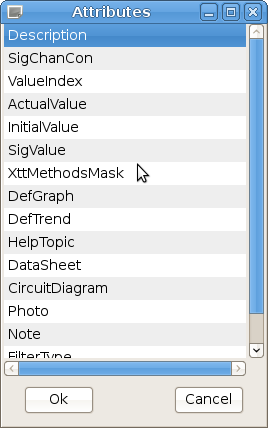
After this you choose which attribute is to be displayed. Select an attribute in the attribute
list and click on 'Ok', or doubleclick on an attribute.

Choose attribute


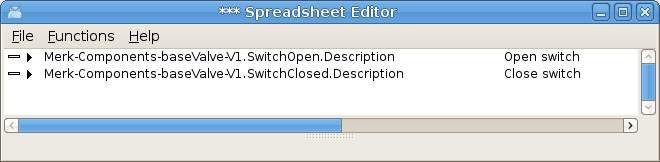
The result is shown in the figure below. Here, the attribute 'Description' was chosen. You
can easily view the other attributes in the object by activating 'File/Next Attribute'
(Ctrl/N) and 'File/Previous Attribute' in the menu.

Spreadsheet Editor


Menu

File/Select Class                       State class and hierarchy for the objects that are to be displayed.
File/Select Attribute                       State which attribute is to be displayed.
File/Next Attribute                       Display the next attribute for the object in the table.
File/Previous Attribute                       Display the previous attribute for the objects in the table.
File/Print                       Print the table.
File/Close                       Close the Spreadsheet Editor.
Functions/Change value                       Open an input field for the selected object.
Functions/Close change value                       Close the input field.