Popup menu
With the action PopupMenu you can by right clicking on an object, open a popup menu. The popup
menu is connected to an object in the database, and displays the methods for this object.
The methods viewed depends on how the object is configured in the database, and on which
methods are configured for this object type.
Let us begin with a simple example where we show the value of an Av object in a Value field.
We create a ValueLargeCenter, and connect it to H4-Av1 and insert the format %7.2f into
Value.Format.

Fig ValueLargeCenter
Now we also add PopupMenu in Action, and insert the Av object into PopupMenu.ReferenceObject.
Note that the references is to the whole object and not to a specific attribute.
We also have to open File/Graph Attributes in the Ge menu and set MB3Action to PopupMenu, as
the default MB3 action is to close the graph.
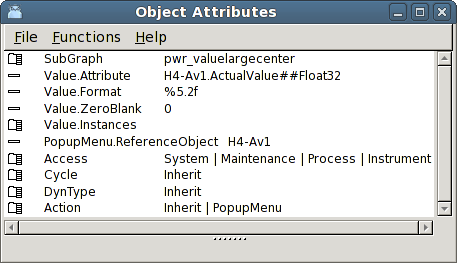
Fig Action PopupMenu added
When we now open the graph in the operator environment and right click on the Value field the
popup menu is opened.
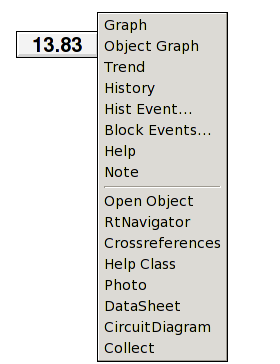
Fig The popupmenu
Which methods are present in the popup menu depends on which class the referred object belongs
to and how the object is configured. In the figure below the configuration of the Av object is
displayed, and we can see the attributes DefGraph, DefTrend, HelpTopic, DataSheet,
CircuitDiagram, Photo and Note that all are associated with different methods.
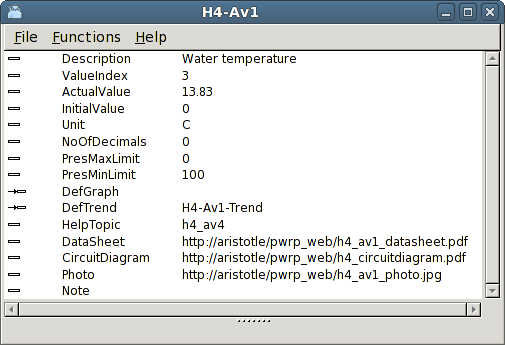
Fig The configuration of H4-Av1
We will now go over some of the alternatives in the popup menu and see how they are configured
or what they depend on.
Graph
For Graph you specify a graph that shows information about the object or about the plant part
where the object is found. The configuration is made by inserting an XttGraph object in the
DefGraph attributes. For H4-Av1 DefGraph is not filled in, and then the graph if fetched from
the closest ancestor with DefGraph specified. In this case it is the hierarchy object H4
that has a default graph stated.
Object Graph
Object Graph opens the object graph for the object. The object graph is a graph that displays
information about an object of a specific class. If there is an object graph availabel for
the present class this alternative is viewed in the popup menu.
Trend
Shows a trend for the object. This requires that a trend is configured with a DsTrend object,
and the trend object is inserted in the DefTrend attribute. DefTrend can also refere to a
DsFastCurve or PlotGroup object.
History
Opens a curve with process history for the object. This requires that storage of data is
configured by a SevHist object positioned below the current object in the object tree.
Hist Event
Hist Event displays the alarm and event history for the current object.
Block Events
Block Event opens a dialog where it is possible to block alarms of different priority.
Help
Help displays a help text for the object. Help text are written in a help text file,
$pwrp_cnf/xtt_help.dat, where each text embraces a topic. By inserting a topic into the
attribute HelpTopic, the text for this topic will be displayed when the Help entry in the popup
menu is activated.
Note
With Note you can write a text that is stored in the Note attribute of the object. The Note
text is shown in the object graph of the object.
Open Object
Open Object displays the object attributes and the object content.
RtNavigator
RtNavigator searches the object in the runtime navigator.
Crossreferences
Shows a list with references to the object in plc code and graphs.
Help Class
Help Class opens a help text for the object class.
Photo
Photo displays a photo of the object in the plant. It is configured by inserting an URL to the
photo into the attribute Photo.
DataSheet
If a data sheet for the object is available, you can insert an URL to the data sheet in the
attribute DataSheet.
CircuitDiagram
A URL to a circuit diagram can be inserted into the CircuitDiagram attribut.