Line
You draw a line by activating the line button in the tool panel, press the right mouse
button where the line is to start, drag with the mouse button pressed to the end position
and there release the mouse button.
Fig Line
Line width
The line width is changed by selecting the line and choose a width in the Linewidth menu.
Fig Linewidth set to 8
Color
The color is changed by selecting the line, clicking on Border in the color palette, and
clicking on the desired color.

Fig Colored line
Line type
There is a number of different line types to choose between. Select the line and activate
the desired type in the Linetype menu.
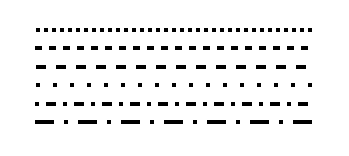
Fig Various line types
Horizontal and vertical lines
To draw a horizontal line you press Ctrl+H (MoveRestrictions Horizontal) before you draw the
line. A vertical line is drawn by first pressing Ctrl+G (MoveRestrictions Vertical).
MoveRestrictions are reset by right clicking in the work area.
Draw several lines
If you will draw several lines you can press the Shift key when clicking on the line button
in the tool panel. Now you can draw several lines without clicking on the line button for
each new line. The function is reset by right clicking in the work area.