Polylinje and polygon
A polyline is drawn by clicking on the polyline button in the tool panel, press left mouse
button at the starting point, keep the mouse button pressed and drag to the next breakpoint
and release the mouse button, press again and drag to the next breakpoint etc. When the last
line is drawn, right click in the work area to finish the polyline.
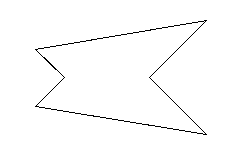
Fig Polyline
Various combinations of border, fill, 3D, gradient, linewitdh and color can be used for
polylines.
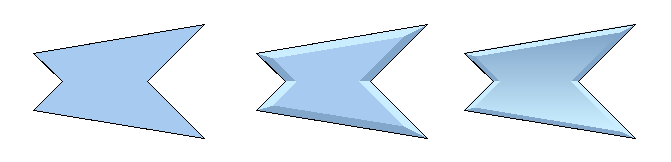
Fig Some combinations of fill, 3D and gradient
3D
When applying the 3D effect on polylines, the polyline should be closed, ie the start point
should be the same as the endpoint. To draw a closed polyline, activate the Snap to grid in
the tool panel before drawing the polyline.
Modify a polyline
To move a breakpoint in a polyline, select the polyline and activate Edit/Edit Polyline in
the menu. The breakpoints and endpoints are now sensitive and can be moved by dragging with
the left mouse button.
Vertical and horizontal lines
Often you only want the polyline to consist of vertical and horizontal lines. By pressing
Ctrl+H (MoveRestrictions horizontal) the first line will be horizontal, the second vertical
etc. If you press Ctrl+G (MoveRestrictions vertical) the first line will be vertical and the
second horizontal etc. Reset MoveRestrictions by right clicking in the work area.