Text
Texts are drawn by activating the text button in the tool panel. Click in the work area and
insert the text into the input field at the bottom line in the editor.
Fig Text
Object attributes
By doubleclicking on the text the object editor is opened, displaying the object attributes.
The attribute Adjustment is set for left, center or right adjustment of the text.
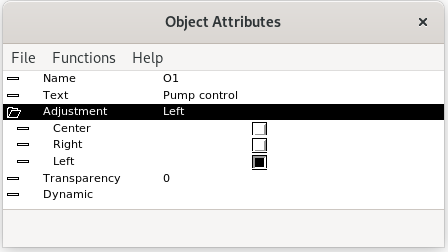
Fig The object editor with adjustment attribute
Text size
You change the text size from the Textsize menu in the tool panel. Select the text and set
desired size in the menu. You can also use the scale function to change the size.
Font
The font is selected with the font menu in the tool panel, You can choose between the fonts
Helvetica, Times, New Century Schoolbook, Courier and Lucida Sans. Select the text and
specify the wanted font in the menu.
Color
Text color is selected by activating the Text button in the color palette, and the clicking
on a clolor.

Fig Colored text
Text rotation
A text can be rotated in steps of 90 degrees by using the rotation button in the tool panel.
Only text with center adjustment can be rotated, ie the attribute Adjustment has to be set to
Center in the object editor.

Fig Rotated text
Change a text
To change a text you select the text and press Ctrl+T (Change Text). An input field is opened
in the bottom line of the editor where you can insert the new text.
Bitmap fonts
The normal fonts are scalable and antialiased. In some cases you might prefer bitmap fonts.
They only exist in certain sizes between 8 and 24 pixel, but requires considerably less
CPU capacity to handle. Bitmap fonts are selected by setting BitmapFonts in Graph Attributes
to 1.
Window manager font settings
Some window managers have settings that affects the fonts. In Gnome you find the setting in
System menu where you can choose between various rendering.