Move, scale and rotate objects
Move an object
To move and scale an object you use the dynamic Move. To begin with we will look at how to
move an object. An object can be moved in x and y direction, and for each direction an analog
signal is connected to the object, specifying the movement relative to the original position.
The signal value can be transformed to a movement in Ge coordinates by one factor in each
direction (Move.XFactor and Move.YFactor) and one offset in each direction (Move.XOffset and
Move.YOffset).
In this example we will move a rectangle in the x direction. We draw the rectangle and create
a group with only the rectangle.
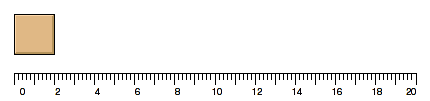
Fig A rectangle
When the rectangle is grouped, we can set Move in DynType and the attributes for Move is
displayed in the object editor. As we are going to move in x direction, we connect
Move.XAttribute to the signal H4-Av1 in the database. We measure the range where the rectangle
is to be moved, and concludes that when the signal varies between 0-100 the rectangle should
be move 20 Ge units in the graph. By placing the rectangle on the zero point, we don't have
to specify any offset, but we have to scale down the signal value by 20/100 = 0.2 and this
value is insert into Move.XFactor. In the example we have also drawn an x axis to show the
magnitude of the movement.
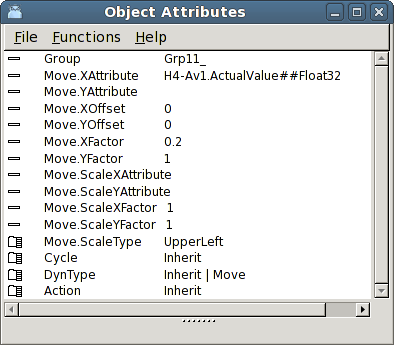
Fig Move dynamic on the rectangle
The result is that when the signal is 0, the rectangle is still positioned in the original
position. At the value 60 the rectangle is moved 12 units, se the figure below, and when
the value is 100 the rectangle is moved 20 units.
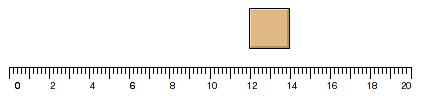
Fig The rectangle moved 12 Ge units in x direction
Scale an object
The move dynamic can also be used to scale an object. The scale can be performed in x and
y direction, and for each direction you connect an analog signal specifying the magnitude
of the scaling.
We use the rectangle in the example above, and add scale attributes to the Move dynamic.
Move.ScaleXAttribute is connected to the signal H4-Av2. We also have to calculate a scale
factor. The rectangle has the width 2 units and with a scale factor of 0.1 a signal value
of 100 will result in a width of 20 units ( 0.1 * 100 * 2 units).
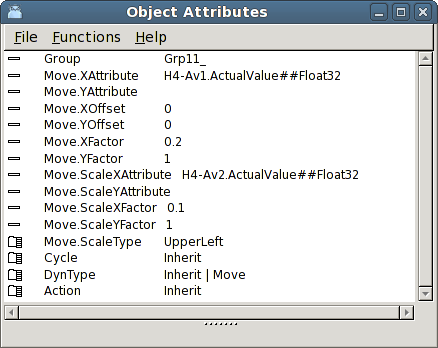
Fig Signal and scale factor stated
The result is that when the signal value is 0, the rectangle has no width at all, and is
drawn as a line. At the signal value 25 is looks as in the figure below, the rectangle is
scaled 2.5 times, and when the signal value is 100 the rectangle is scaled 10 times and
covers the whole x axis.
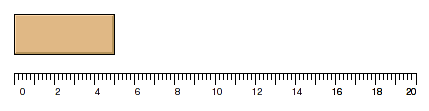
Fig The signal value 25 results in 2.5 times scaling
Rotate an object
To rotate an object you use the dynamic Rotate. Rotate is connected to an analog signal that
contains the rotation in degrees.
Rotate has certain limitations as rectangles and ellipses only can be rotated in steps of
90 degrees. For that reason you preferably use polylines, lines an circles with Rotate.
We draw a simpel needle with an arc and a polyline. We group the objects and set Rotate in
DynType. We also draw a circular axis with an AxisArc object.
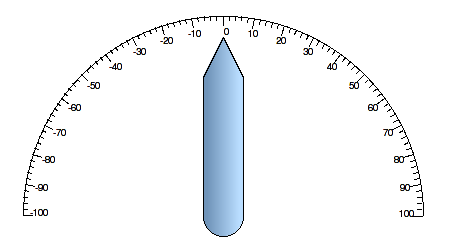
Fig Needle with rotation dynamic
The needle is connected to the anlog signal H4-Av1. We also have to specify the point on
which the object will turn. In this case it is the center of the arc that has the x
coordinate 9 and y coordinate 1. The turning point is inserted into Rotate.x0 and Rotate.y0.
The axis we have drawn has the range -100 - 100, which is the range of the signal H4-Av1. This
has to be converted to degrees and the corresponding rotation is -90 - 90 degrees, ie the
scale factor is 0.9. We insert 0.9 into Rotate.Factor.
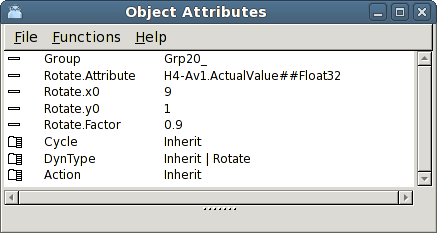
Fig The needle is connected to an analog signal and the scale factor is set to 0.9
The result is displayed in the figure below.
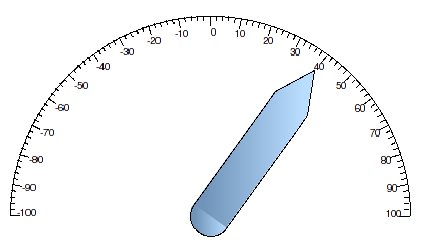
Fig The value 40 will cause a rotation of 36 degrees