Draw texts
To draw a dynamic text, you have to use a subgraph that contains an Annotation. For example
almost all pushbuttons contains an Annotation to be able to print a text on the button. Also
Value and InputValue subgraphs contains an annotation.
An annotation is a place in the subgraph where a text can be printed. The text either be
specified in the editor, or be supplied by some different types of dynamics that is connected
to signal in the database and will modify the text in runtime.
The different types of text dynamics are
- DigText, where you shift between two different texts dependent on a digital signal.
- AnalogText, where you shift between several different texts dependent on an analog signal.
- Value. When connected to a string attribute in the database, the string value will be
displayed.
Shift between two texts on a digital signal
The dynamic DigLowText shifts between two texts dependent on a digital signal.
We create a pushbutton of type ButtonRoundMetalFram and opens the object editor.

Fig Pushbutton with an annotation
In Text you can specify a text that is diplayed on the pushbutton, and we insert the text
'Off'. By adding the dynamic DigText, the text specified in Text will be replaced by the
text in DigText.LowText when the signal we connect to DigText.Attribute is low. We insert
the text 'On' in DigText.LowText and connect DigText.Attribute to the Dv H1-Dv1. We also
connect the same signal to ToggleDig.Attribute to easy be able to change the value by clicking
on the pushbutton.
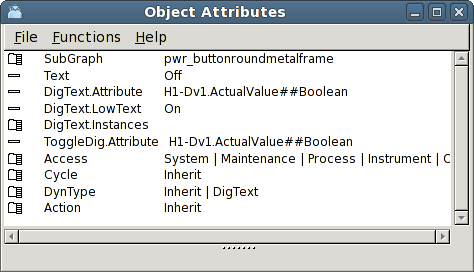
Fig Dynamik DigLowText
The dynamic will now work in this way. When H1-Dv1 is low the text 'On' is displayed on the
button, this is the text in DigText.LowText, and when the signal is high the text 'Off' is
displayed, this is the text we inserted in the Text attribute.
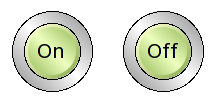
Fig Low signal to the left and high signal to the right
DigText has sevral instances and for each instance a text can be specified and it will be
connected to a digital signal. Note that the function is somewhat different for the other
instances. For the first instance you specify a LowText, ie a text displayed when the value is
low. For the other instances you specify a HighText, ie a text that is displayed when the
signal is high.
Shift between several texts dependent on an analog signal
For the dynamic AnalogColor you can specify up to 32 different texts, and which of the texts
that is printed depends on the value of analog signal that is connected to the dynamic.
We use a ValueLargeCenter to demonstrate the dynamic.
Fig A ValueLargeCenter subgraph
ValueLargeCenter has Value dynamic as default, and we remove this by removing Inherit in
DynType, and mark AnalogText instead.
In AnalogText.TextMask you mark the texts that is to be used. We will shift between four
different texts and mark 2, 3 and 4. The texts 'Low level, 'Normal level', 'High level'
and 'Very high level' is filled in in the text attributes. We keep the enumeration values,
which implies that AnalogText.Text1 will be displayed when the signal is 0, AnalogText2
when the signal is 1 etc. Actually the text will shift at the value 0.5, 1.5, and 2.5. If the
signal value is larger than 3.5 the annotation will be emptied.
We also connect the Av H4-Av1 to AnalogText.Attribute.
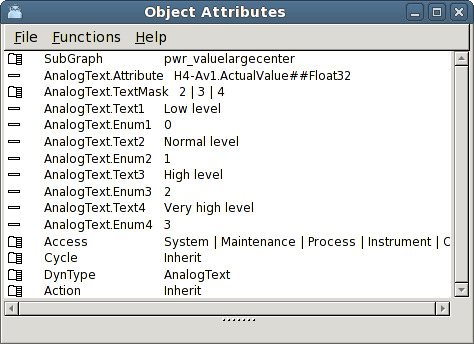
Fig The Value dynamic replaced by AnalogText
In the figure below the value object is displayed when H4-Av1 has the values 0, 1, 2 and 3
with the 0 value at the bottom.
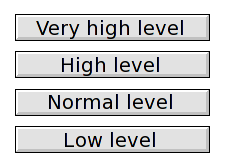
Fig Text at different values of H4-Av1
Display the text of a string attribute
To display the content of a string attribute in the database you use the Value dynamic. As
in the previous example we create a ValueLargeCenter object.
Fig A ValueLargeCenter subgraph
The subgraph has Value as default dynamic, and we only have to connect Value.Attribute to
a string attribute, and insert the string format '%s' in Value.Format. We connect
Value.Attribute to the Sv object H1-Sv.
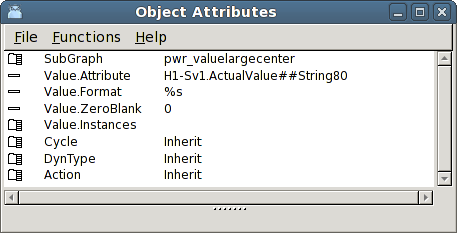
Fig Value dynamic
To show the result we insert the text 'Starting up' in H1-Sv1 in Xtt.
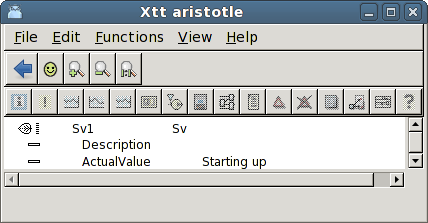
Fig Set a text in the Sv attribute
The text will be displayed in the Value object.
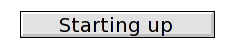
Fig The text displayed in the value object