Color Themes


Colorthemes provides a number of color combinations for the operator environment, to satisfy
the operators preferences and adapt to the brightness of the external environment. The operator
can select a color theme from the menu in the operator window, and will affect the appearence
of the tools and graph in the ProviewR base system.


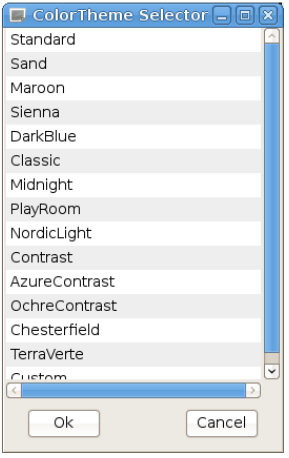
Fig Color theme selection


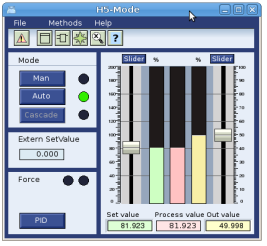
Fig Operator window with sand color theme


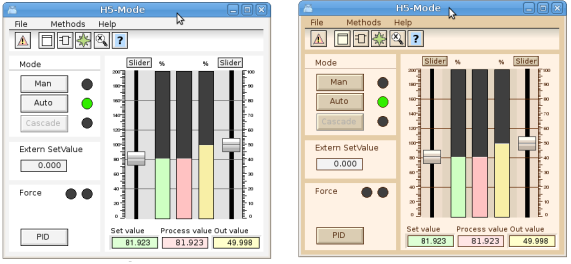
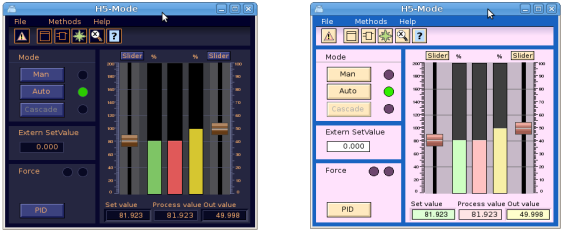
Fig Color themes Standard and Sand


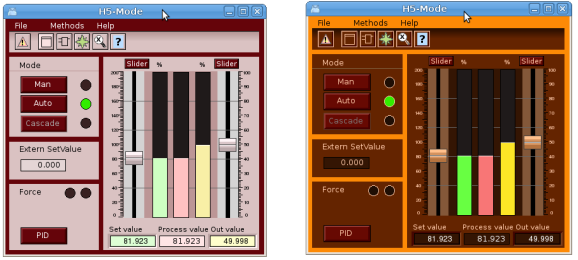
Fig Color themes Marron and Sienna


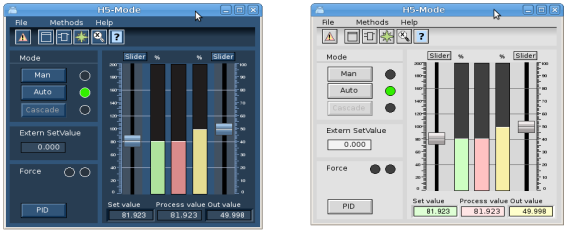
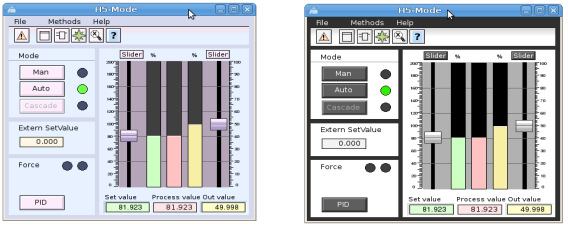
Fig Color themes DarkBlue and Classic


Fig Color themes Midnight and Playroom


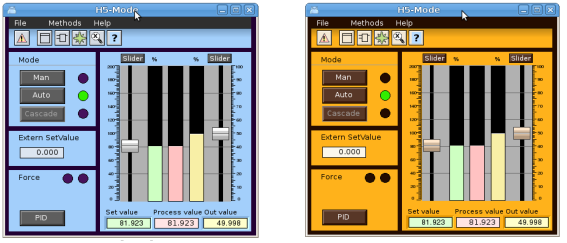
Fig Color themes NordicLight and Contrast


Fig Color themes AzurContrast and OchreConstrast


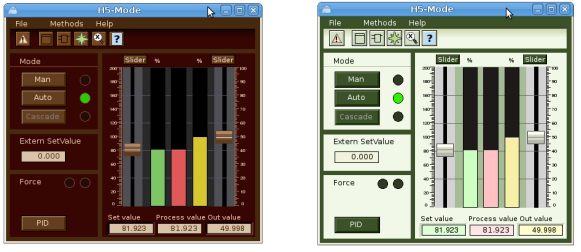
Fig Color themes Chesterfield and TerraVerte


Fig Color theme Polar

The color themes can also be used when drawing graphs in a project. These graphs will follow
the appearance of the color theme selected by the operator, but it requires that specific
colors in the custom color palette is used when drawing different objects. A color theme is
loaded from File/ColorTheme/Select in the Ge menu. The colors for the theme is then loaded into
the custom colors palette. Every color in the custom color palette is adjusted for a specific
purpose. The first color for example is the background color for the graph, and the fifth
color should be set on texts on the background. By placing the cursor on a color in the
palette, the purpose of this color will be written in a field below the palette.

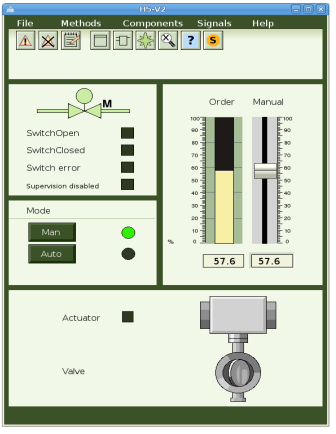
The color theme has support for specific elements in a graph. In the example below the
background color is lightgreen. The dark green lines are called delimiter areas. In this case
it is rectangles the divides the graph into different sections. It can also be used for
larger areas with text and indicators. At the top there is a menu bar with pulldown menues,
and below this a gradient to make a shadow below the menu. Object graphs should contain a
method toolbar positioned below the menu. Other elements are bars, axises, buttons, indicators,
texts on the background, and texts on a delimiter area, sliders, value fields and input fields,
tables, diagrams etc.

For more complex elements that are are not suited for a change of fill color, as the gray
actuator and valve below, the dynamic ColorThemeLightness can be used to adapt the lightness
of these elements to the lightness of the theme.


Fig Graph drawn with color theme colors

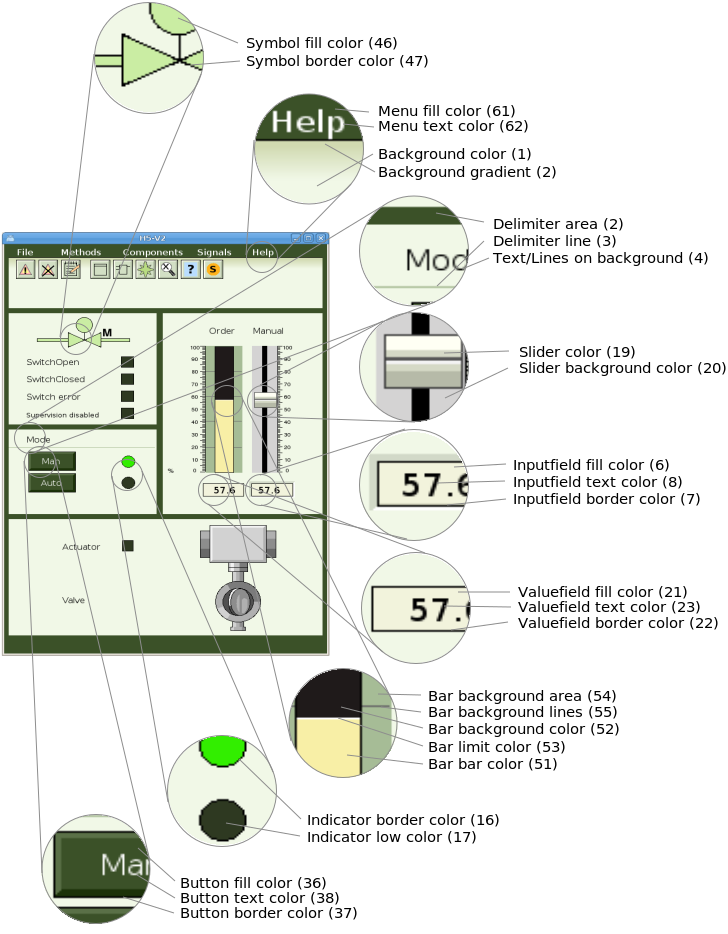
Description of color theme colors

Name                                Description
1 Background                          Should be set as background color for the graph. Light
                                    green in the example above.
2 Background gradient                       Can be used for gradients to the background color,
                                    eg the gradient under the menu above.
3 Delimiter area                       Color of delimiter areas. The dark green areas.
4 Delimiter lines                       Color of lines that divides the background, eg the line
                                    under Mode above.
5 Text/Lines on background                       Color of texts and lines on the background.
6 Input field fill color                       Fill color for ValueInput objects.
7 Input field border color                       Border color for ValueInput objects.
8 Input field text color                       Text color for ValueInput objects.
16 Indicator border color                       Should be set as border color on indicators.
17 Indicator low color                       Low color for indicator
18 Indicator on delimiter low color                       Low color for an indicator on a delimiter area.
19 Slider color                        Color for sliders.
20 Slider background color                       Color for slider background.
21 Value field fill color                       Fill color for Value objects.
22 Value field border color                       Border color for Value objects.
23 Value field text color                       Text color for Value objects.
31 Limit switch high color                       Color for limit switch when it's high.
32 Limit switch low color                       Color for limit switch when it's low.
33 Limit switch border color                       Color for limit switch border.
34 Text/Lines on delimiter                       Color for text or lines on a delimiter area.
35 Button active color                       Color to indicate that a button is active.
36 Button fill color                       Fill color for buttons.
37 Button border color                       Border color for buttons
38 Button text color                       Text color for buttons
39 Button insensitive text color                       Text color set when button is set insensitive
                                     by Invisible dynamics.
40 Button insensitive border color                       Border color when button is set insensitive
                                    by Invisible dynamics.
46 Symbol fill color                       Color that can be used component symbols.
47 Symbol border color                       Color for symbol border.
48 Symbol low color                       Color when symbols is low.
49 Symbol empty color                       Color that can be used to indicate that a valve in closed
                                    or empty.
50 -

51 Bar bar color                       Color for the value part of a bar object.
52 Bar background color                       Color for background part of a bar object.
53 Bar bar limit color                       Color for edge of bar.
54 Bar background area                       Color used for surrounding area for bar objects.
                                    Dark green in the example above.
55 Bar background lines                       Color for lines on the surrounding area for bar
                                    objects.
61 Menu fill color                       Fill color for menu bars and menus.
62 Menu text color                       Color for menu texts.
63 Toolbar fill color                       Color for method toolbar in object graphs
64 Toolbar border color                       Border color for method toolbar.
65 Toolbar text color                       Text color for method toolbar.
66 Diagram fill color                       Fill color for diagrams.
67 Diagram border color                       Border color for diagrams.
68 Diagram curve color                       Default curve color for diagram.
69 Axis border color                       Color for axis objects.

Fig Examples of some color theme colors

Custom color theme

The color theme selector contains an entry with name Custom. To create a custom theme, load
a color theme into the custom color palette, double click on the colors to open the color
selector and modify the colors. When the desired color are modified, save the theme from
/File/CustomColors/Save with name 'pwr_colortheme100'. The color theme is stored in the file
$pwrp_pop/pwr_colorthem100.pwgc. Copy this file to $pwrp_exe and make sure it is distributed
to the operator stations.

To set the custom color theme in the operator environment, open the color theme selector from
'Functions/View/Color theme' in the operator window menu, and select 'Custom'.