Help window
Getting help
The help function can be opened in a number of different ways.
Operator window
In the middle part of the operator window there is a help button that opens the help texts
for the project.
The Navigator menu
The menu entry Help/Overview gives help on ProviewR and the operator environment.
Help/Project gives help on the project.
Command
A help text is opened by the Xtt command 'help'. To help you add the topic you are
interested in. The command 'help help' shows for example how you use help.
Object methods
For an object there are two help methods.
- Help, views help for the object or plant part.
- Help Class, views information about the object class.
Help and info buttons in process graphs
Pushbuttons in process graphs can be connected to helptexts. These are usually marked
with a question mark or an 'I'.
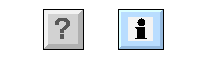
Fig Help buttons
Navigate in the help text
Rows with links are marked with an arrow in the left edge of the row.
The first row is a link to the previous topic.
Navigate from the keyboard
With PageUp and PageDown you can scroll up and down in the text.
Links are followed by selecting the link row with the arrow up and down keys, and then
press arrow right.
Arrow left returns to the previous page.
Ctrl+N views the next topic, and Ctrl+P the previous topic. Ctrl+A returns to the start
page.
Navigate with the mouse
To follow a link, click on the arrow, or double click on the row.
By clicking on the arrow in the first row, you return to the previous page.
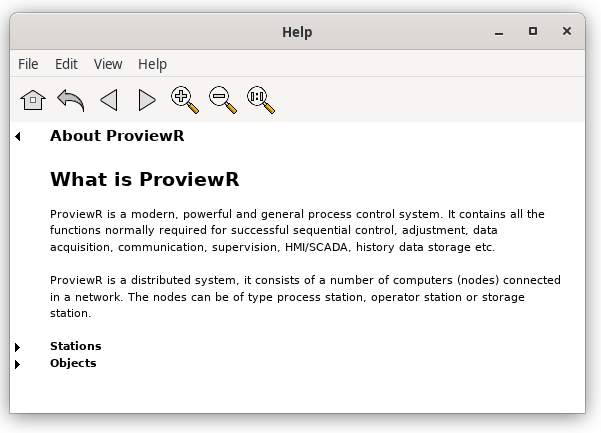
Fig Help window