
Objects


The object tree

Object is a central concept in ProviewR. Sensors, valves, motors, controllers etc. are all
represented by objects in a database. The objects are ordered in a tree structure where
different hierarchy levels in the tree represent parts of the plant or process. If we look
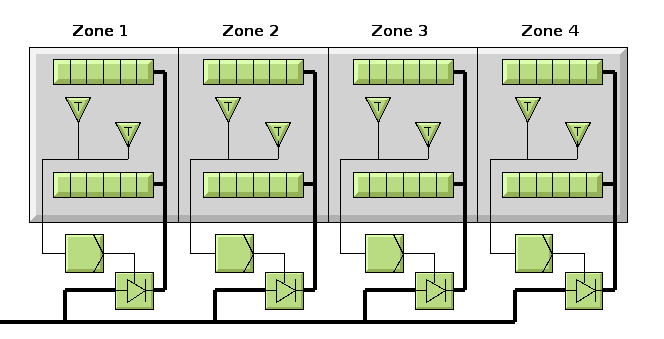
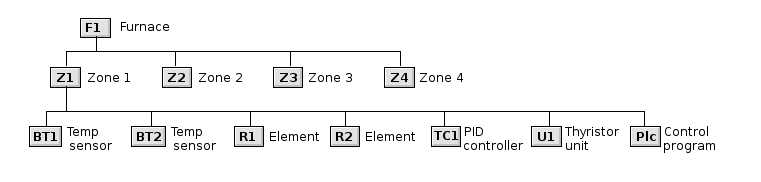
at a furnace, the top level can represent the whole furnace. The furnace consists of four
warming zones, which are represented by objects on the next level in the object tree. Each
zone has two electric heaters and two temperature sensors, still one level down. Here are
also some object that don't have any physical equivalent in the plant, a PID controller
and a control program for the zone.


Fig Furnace with 4 zones


Fig Object tree for the furnace

Note that several objects have quite cryptic names that follow a notation standard, but to
each object there are a more detailed description that is often viewed with the object.

Let us have a closer look at an object, for example one of the temperature sensors. The
object is shown in an overview process graph with the graphical symbol of the object, a
triangle with the letter T.


Fig Graphical symbol for a temperature sensor

Object graph

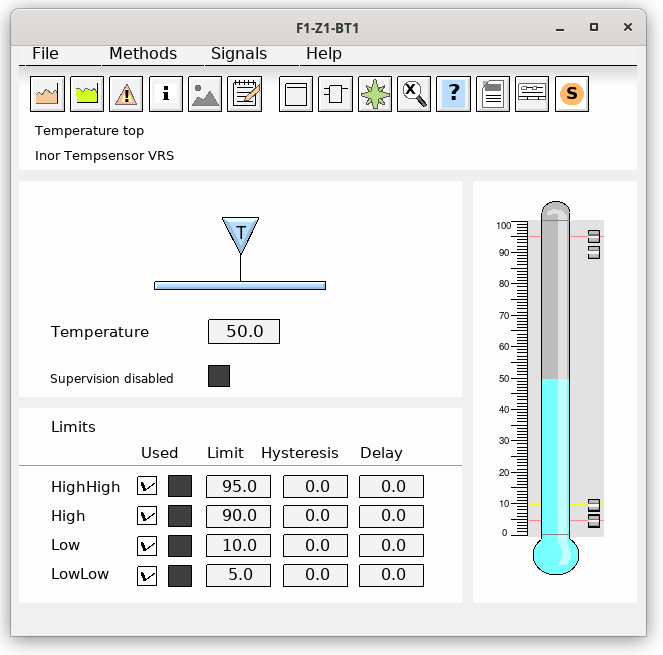
If you click on the symbol the object graph of the object is opened. From the object graph
you can see the properties of the object. The most interesting for a temperature sensor is
of course the measured temperature, that is viewed both in figures and as a bar
(thermometer), see 'Fig Object graph for a temperature sensor' below. The temperature sensor
object also contains four alarm limits, highhigh, high, low and lowlow. The level of the
alarm limits can be set from the graph, and also a hysteresis on the limits. With check
boxes you can also disable the alarm limits.


Fig Object graph for a temperature sensor

Methods

In the upper edge of the object graph there are a number of pushbuttons that activate the
methods of the object. By the methods you can reach all the information there is on the
objects in the control system. The methods can also be activated from the menu in the
objects graph, or by right clicking on the graphical symbol in the overview graph, opening a
popup menu with the methods. Actually, wherever you find the object, in alarm lists,
process graphs, in the plc code etc, you can by right clicking on the object open the popup
menu with the methods or the object. Here follows a list of different methods, but which
methods are relevant for a specific object, depends on the type of object and how it is
configured.

Method              Description
Object Graph        Open the object graph.
Trend               Open a trend curve.
History             Fetch history data from a storage station and view in a curve.
Hist Event          View a historical list of alarms and events for the object.
Block Events        Block alarms and events.
Help                View a help text for the object.
Note                Write a note for the object. The note is viewed in the object graph.
Open Object         Show the content of the object.
RtNavigator         Show the object in the object tree.
Crossreferences     Show were the object is referenced in the plc code and process graphs.
Help Class          View help for this object type.
Datasheet           Show the datasheet for the component in the plant that corresponds
          to the object.
CircuitDiagram      Show the circuit diagram for the object.