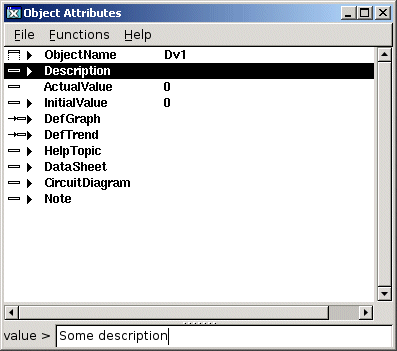
The quantity of data for an object is divided in attributes. The Object Editor displays the
attributes of an object and value of each attribute. If you are in edit mode, you can also
change the values of the attributes.
The attributes are displayed in the same way as in the configurator, the main difference is
that they are displayed in a separate window.
The Object Editor is opened from the Configurator or the Plc editor. Activate 'OpenObject' in
the popup menu for an object, or select the object and activate 'Functions/Open Object' in the
menu. From the Plc editor you can also start the object editor by doubleclickning on the
object. If the Configuration/Plc editor is in edit mode, the Object Editor is also opened in
edit mode.
Menu
File/Close
close the object editor.
Functions/Change value
open the input field for the selected attribute.
This is only allowed in edit mode.
Functions/Close change value
Close the input field.
Object Editor
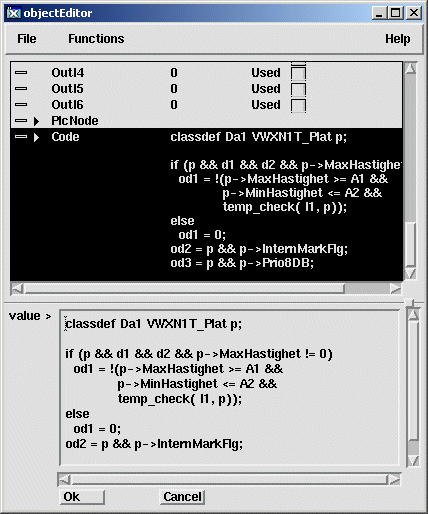
The Object Editor has an input field to enter multiline texts. In this case you can not
terminate the input with 'Enter', as for singleline texts. You either click on the 'Ok' button
or activate 'Functions/Close change value' (Ctrl/T) to terminate.
A Multiline text
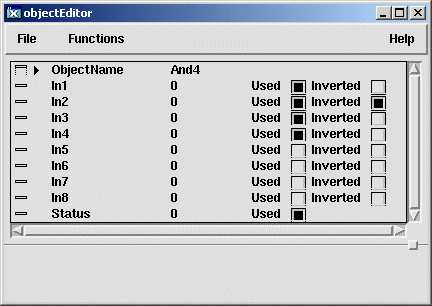
The Object Editor for plc objects has functions to state which inputs or outputs that are to
be displayed in the function block. You can also choose if digital inputs are to be inverted.
This is chosen with check boxes for each attribute respectively ('Used' and 'Inverted'). The
check box for 'Used' can also be changed from the keyboard with 'Shift/ArrowRight', and the
check box for 'Inverted' can be changed with 'Shift/ArrowLeft'.