Configure a Root Volume

A root volume is opened from the volume selection window. Select the volume and click on the
Ok button. This will start the configuration editor for the root volume. As for the
DirectoryVolume it is split in two windows, but this time, the left window shows the
plant configuration and the right the node configuration.

Plant Configuration

The Plant Configuration describes the different plants that you can find in the ProviewR
system. A plant is a logical description of e.g. a production process, functions, equipment,
that is to be controlled, supervised, etc.
See an example of a plant configuration

$PlantHier Object

The top object in the plant hierarchy is the $PlantHier object. This object identifies the
plant or parts of it.

The $PlantHier object is used to group objects and to structure the plant. This object can,
for instance, be used to group signal objects.

Signal Objects

The signal objects define logical signals, or points, representing a quantity or value
somewhere in the process; as contrast to the channel objects which define physical
signals. The signal objects are generic, i.e. they can be used with any I/O-system.

There are some classes of signals that cannot be connected to hardware signal, i.e. the Dv,
Iv, Av and Sv objects (DigitalValue, IntegerValue, AnalogValue and StringValue). These objects
are used to store logical values, integer value, real numbers and strings respectively.

The actual value of the signal is defined by the attribute ActualValue.

At present the following signal objects are available:

Ai                  Analog input.
Ao                  Analog output.
Av                  Analog value.
Ii                  Integer input.
Io                  Integer output.
Iv                  Integer value.
Di                  Digital input.
Do                  Digital output.
Po                  Pulsed digital output.
Dv                  Digital value.
Co                  Counter input.
Sv                  String value.
Note! The PLC program can read signals placed on remote nodes, but cannot write to them.

PlcPgm Object

The PlcPgm object defines a PLC program. It is possible to have several PLC programs in a
plant. The following attribute must be given a value:

- ThreadObject indicates the plc thread where the program is executed. It references a
PlcThread object in the node configuration.
- If the program contains a Grafcet sequence, the ResetObject must be given. This is a Dv, Di
or Do that resets the sequence to its initial state.


Backup Object

The Backup object is used to point out the object or attribute, for which the backup will be
made. It is also indicated whether storing will take place with fast or slow cycle time.

MountObject

The MountObject mounts an object in another volume. The attribute Object specifies the mounted
object.

Node Configuration

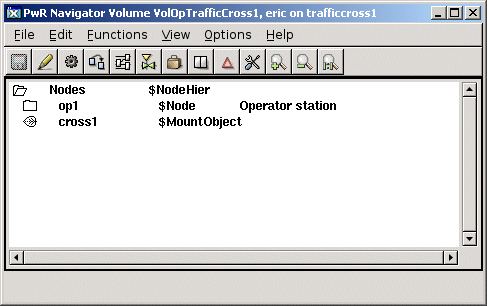
The Node Configuration defines the nodes of your ProviewR system. The nodes are named and
their contents specified.


Fig Node Configuration

$NodeHier Object

The node hierarchy object is used to group objects in the Node Configuration. This object is
of the $NodeHier class. The object can be used to group for instance $Node objects or XttGraph
objects.
See $NodeHier in Object Reference Manual

$Node

To define the nodes of the system, you use node objects. The node object is of the $Node class.
When the node object is created, a number of server and operator objects are created.

See $Node in the Object Reference Manual

I/O Objects

The configuration of the I/O system is dependent of which type of I/O system you use. ProviewR
has a modular I/O that can handle different types of I/O systems: rack and card systems,
distributed bus systems, or systems connected with some network.

The modular I/O is divided in four levels: agent, rack, card and channel.

Rack and Card System
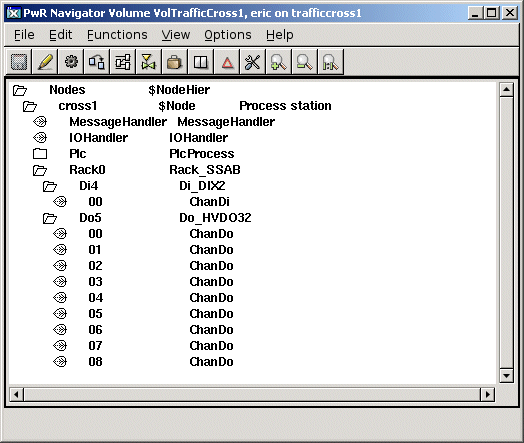
We will take the PSS9000 as an example of a rack and card I/O. The system consists of analog
and digital input and output cards that are mounted in racks. The rack is connected via a bus
cable to a busconverter card in the computer that converts the PSS9000 bus to the computers
PCI bus.

In this case, the agent level is not used, so the $Node object works as an agent. The rack
level is configured with SSAB_Rack objects that are placed below the $Node object, one for
each rack in the system. The cards are configured with objects below the rack object, that are
specific for different kind of IO cards. For PSS9000 there are card objects like Ai_Ai32uP,
Ao_Ao4uP, Di_DIX2 and Do_DVDO32. Below a card object, channel objects are placed, one for
each channel on the card.

Common for the different I/O systems are the channel objects, that define the input or output
channels of a card or module. There are some different types of channels.

ChanDi              Digital input
ChanDo              Digital output
ChanAi              Analog input
ChanAit             Analog input with conversion of the signalvalue from a table
ChanAo              Analog output
ChanIi              Integer input
ChanIo              Integer output
ChanCo              Counter input

Fig I/O configuration

Distributed I/O
As an example of distributed I/O we choose profibus. In this case, all the four levels are used.
In the PCI bus of the computer, there is a mastercard that communicates with a number of slaves
on the profibus circuit. The mastercard is configured with a Pb_Profiboard card on the agent
level. Below this, we find the different slaves configured with Pb_DP_Slave objects. They
represent the rack level. Below the slave objects there are module objects of type Pb_Ai,
Pb_Ao, Pb_Di, Pb_Do etc, that are placed on the card level. Below the module objects finally,
the channels are configured with the channel objects ChanDi, ChanDo etc.

Process and thread for I/O objects
I/O objects of the card level, often contains the attributes Process and ThreadObject. Which
process that shall handle the card is defined in Process.

The card can be handled by the PLC program, that is, reading and writing is made synchronized
with the execution of the PLC. You can also specify a thread in the PLC that should handle the
card, i.e. which timebase is used to read or write the card (the PlcThread attribute).

The card can also be handled by the rt_io process, that usually has a lower priority than the
PLC, and that is not syncronized with the PLC. Certain types of analog inputcards that take
some time to read are with advantage handled by this process.

You can also write an application that handles reading and writing of cards. There is an
API to initiate, read and write the cards. This is useful if the reading and writing of a
card has to be syncronized with the application.

MessageHandler Object

The MessageHandler object configures the server process rt_emon, that handles the supervision
objects (DSup, ASup, CycleSup). When an event is detected by the server, a message is sent
to the outunits that have interests in this specific event.

In the object is indicated for example the number of events that are stored in the node. The
object is automatically created below a $Node object.
See MessageHandler in the Object Reference Manual

IOHandler object

IOHandler configures properties for the I/O handling.

- ReadWriteFlag specifies whether to address physical hardware or not.
- IOSimulFlag indicates whether to use the hardware or not.
- The timebase for the rt_io process, i.e. the process that handles slower types of I/O cards
that are not suitable to be handled by the PLC.

In the production system for a process station, ReadWriteFlag is set to 1 and IOSimulFlag is
set to 0. If you want to simulate the process station, for example on the development station,
ReadWriteFlag is set to 0 and IOSimulFlag is set to 1.

The IOHandler object is created automatically, when creating a $Node object.
See IOHandler in the Object Reference Manual

Backup_Conf Object - Configuration Object for Backup

Sometimes it may be desirable to have a backup of a number of objects in your system. In that
case you place a backup configuration object, Backup_Conf, under the node object. The backup
is carried out with two different cycles, one fast cycle and one slow.

In order to indicate which objects/attributes that should be backed up you use backup objects.
See description of the Backup object
See Backup_Conf in Object Reference Manual

Operator Place Object

To define an operator place you place an object of the OpPlace class under the $Node object.

The following attributes must be given values:


- UserName is a name of a ProviewR user, defined in the UserDatabase. The privileges of the
user determines the access to the system.
- MaxNoOfEvents indicates the number of events that the operator's event list can hold at
the same time.
- EventSelectList indicates the object hierarchies in the Plant Configuration, from which the
operator will be receiving events.

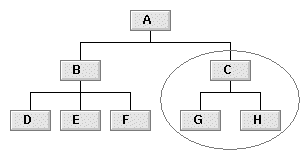
If we look at the figure below, that illustrates the plant A, and assume that we want to
receive events only from the encircled objects, we state 'A-C' as an alternative in the
select list. This choice means that we will be receiving events from the supervised object C,
and from all supervised objects that have C as their parent.


Fig EventSelectList example 1

Another example:

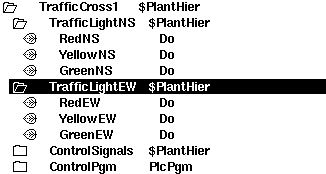
We look at the figure below, which illustrates the plant TrafficCross1. If you want to receive
all events from the plant TrafficCross1, you state TrafficCross1 as an alternative.
TrafficCross1 handles two traffic lights, TrafficLightNS and TrafficLightWE. Let us say that
we want events only from TrafficLightNS. In that case we state 'TrafficCross1-TrafficLightNS'
instead of TrafficCross1.


Fig EventSelectlist example 2

If you want to receive messages from the CycleSup object that supervises the plc threads, you
must also state the hierarchy name of the $Node object in EventSelectList.

In FastAvail you specify the complete hierarchy name of the XttGraph object, which will be
possible to start from the graphics buttons of the Operator Window. You can have 0 - 25 push
buttons. Buttons that are not used become invisible.

See OpPlace in Object Reference Manual


Fig Operator Window

The Plant Graphics Object - the XttGraph Object

In order to be able to show plant graphics that are unique to the project in the operator
station, you must configure XttGraph objects. These objects define, for instance, what the
files with the plant graphics are called. The objects are referred to in the FastAvail
attribute of the OpPlace object, and in the DefGraph attribute that is found in $PlantHier and
signal objects and makes it possible to open the graph from the popup menu for the object.

When the object is referred to in a FastAvail you can use the possibility to execute a Xtt command
from the XttGraph object. In this way, you can set a signal from a pushbutton in the operator
window.

- Action. States a Ge graph to open, or an Xtt command to execute.

See XttGraph in Object Reference Manual

Multiview object

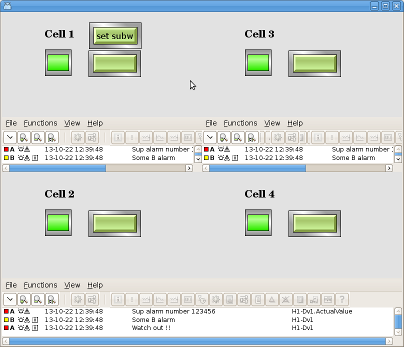
Multiview is an operator window organized as table where each cell can contain a graph,
trend, sev history curve, alarm list, event list or another multview window. The example
below displays a multiview window with one column and two rows. The first cell contains
another multiview with two columns and tree rows, and the second cell contain an alarm window.
The different alarm windows show alarms from different parts of the plant, specified by
AlarmView objects. An multiview window is configured by a XttMultiView object. The Action
array contains the specifications for each cell.

It is also possible to exchange a graph or curve in a cell with the 'set subwindow' command.


Fig Multiview window