Navigator


The navigator, also called Xtt, is started from the 'Navigator' button in the operator
window. It can also be started as a separate program, independent of the operator
environment. This is useful at maintenance or troubleshooting of the system. You then start
from a terminal window, see section 3.1.


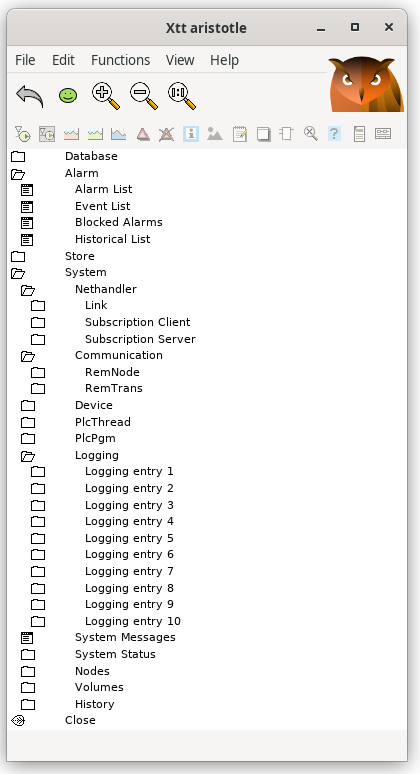
Fig The navigator menu

The figure above shows the navigator menu. The upper map, 'This Project' in configurable
and can contain a map structure that is specific for the project, and by default it is
missing. The other maps though are always present.

Database                                Shows the object tree and the objects in the database.
Alarm / Alarm List                       Opens the alarm list.
Alarm / Event List                       Opens the event list.
Alarm / Blocked Alarms                       Shows the list of blocked alarms.
Alarm / Historical List                       Shows the event log.
Store                                   Shows stored collection views.
System / Nethandler / Link                       Shows links to other ProviewR systems.
System / Nethandler / Subscription Client                       Shows subscriptions (client).
System / Nethandler / Subscription Server                       Shows subscriptions (server).
System / Communication / RemNode                       Shows remote communication (nodes).
System / Communication / RemTrans                       Shows remote communication (transactions).
System / Device                         Shows I/O devices.
System / PlcThread                       Shows Plc threads.
System / PlcPgm                         Shows PlcPgm objects.
System / Logging                        Dialog to start logging of data.
System / System Messages                       Views system messages.
System / System Status                       Views system status for the node.
System / Nodes                          Shows the status graph for nodes.
System / Volumes                        Shows loaded volumes.
Close                                   Close the navigator.

Navigate

Navigate from the keyboard

The most ergonomic way to navigate in the map structure is to use the arrow keys. With
Arrow Up and Arrow Down you select a map or a leaf. With Arrow Right you open a map and
with Arrow Left you close.

An object in the database is opened by Shift Arrow Right, i.e. you first press the Shift
button and keep it down while pressing the Arrow Right key. If the object doesn't have
any children, it is enough to press Arrow Left.

If you have the privilege RtWrite it is possible to change attribute values in the database.
By opening an object, selecting an attribute and pressing Arrow Right, an input field is
opened where a new value can be entered.

Navigate with the mouse

Of course you can also navigate with the mouse. A map is opened by clicking on the map
(or doubleclicking on the text). Then you close by clicking on the map again.

An object in the database is opened by pressing the Shift key and click on the map/leaf
for the object.

Commands

From Functions/Command in the menu, or Ctrl+B, a command prompt is opened in the bottom row
of the navigator. Here you can enter commands and execute scripts. Available commands are
described in the chapter Commands and script in the chapter Script.

Commands
Script

Collection view

By Functions/Collect/Show, Ctrl+N, you look at collected objects and attributes. For trouble
shooting you often need to look at a number of different attributes simultaneously. By
traversing the object tree and collecting attributes with Functions/Collect/Insert, Ctrl+V,
and then activating Functions/Collect/Show these attributes are viewed on one page.

A collection view can be saved to a later session by the 'save' command. To save a
collection view with the name 'mycollection' you write the command

> store/collect mycollection

The name can be found in the 'Store' map, and can also be restored by the command

> @mycollection

Collection window

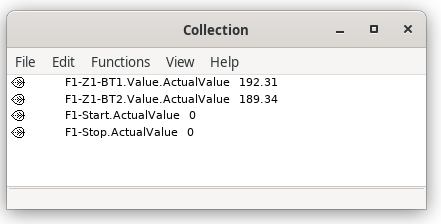
A collection view can be copied to a separate window with Functions/Collect/Copy To Window.


Fig Separate collection window

Also an empty window can be created from Functions/Collect/New Window. New attributes are
added to the window by selecting the attribute in the runtime navigator, then selecting the
collection window and activating Edit/Insert (Ctrl+V). With Shift+ArrowUp and
Shift+ArrowDown attributes can be moved up and down in the window.

A collection window is saved from File/Save (Ctrl+S) with a specified name. It can later
be opened from Functions/Collect/Open in the runtime navigator, or File/Open in an
collection window. The desired window is opened from a list containing all saved collection
windows.